
Skip to content
Easy Tabs Block
  • Features
  • Patterns
  • Why Us
  • FAQs
  • Pricing
  • Free Download
Login
Download
  • Getting Started
  • Using Pre-Designed Patterns
  • Tab Button Styles (Active & Hover)
  • Responsive Tab Settings
  • Managing Tabs (Duplicate/Delete)
  • Using Icons Inside Tabs
  • Tab Animation Settings
  • Autoplay & Progress Bar (Pro)
  • Scroll-Synced Sticky Tabs (Pro)
  • Tab Expander (Collapsible Tab) (Pro)
  • URL-Based Tab Activation (Pro)
  • How to Creating Nested Tabs
  • How to Create Edge-Aligned Tabs

How to Animate Tabs

The Tab Animation Settings control how content panels transition when users switch tabs. With smooth, customizable animations, you can enhance the user experience and draw attention to your tabbed content.

Accessing the Settings

  1. Select your Tabs block in the Gutenberg editor.
  2. In the block sidebar, expand the Animation panel.
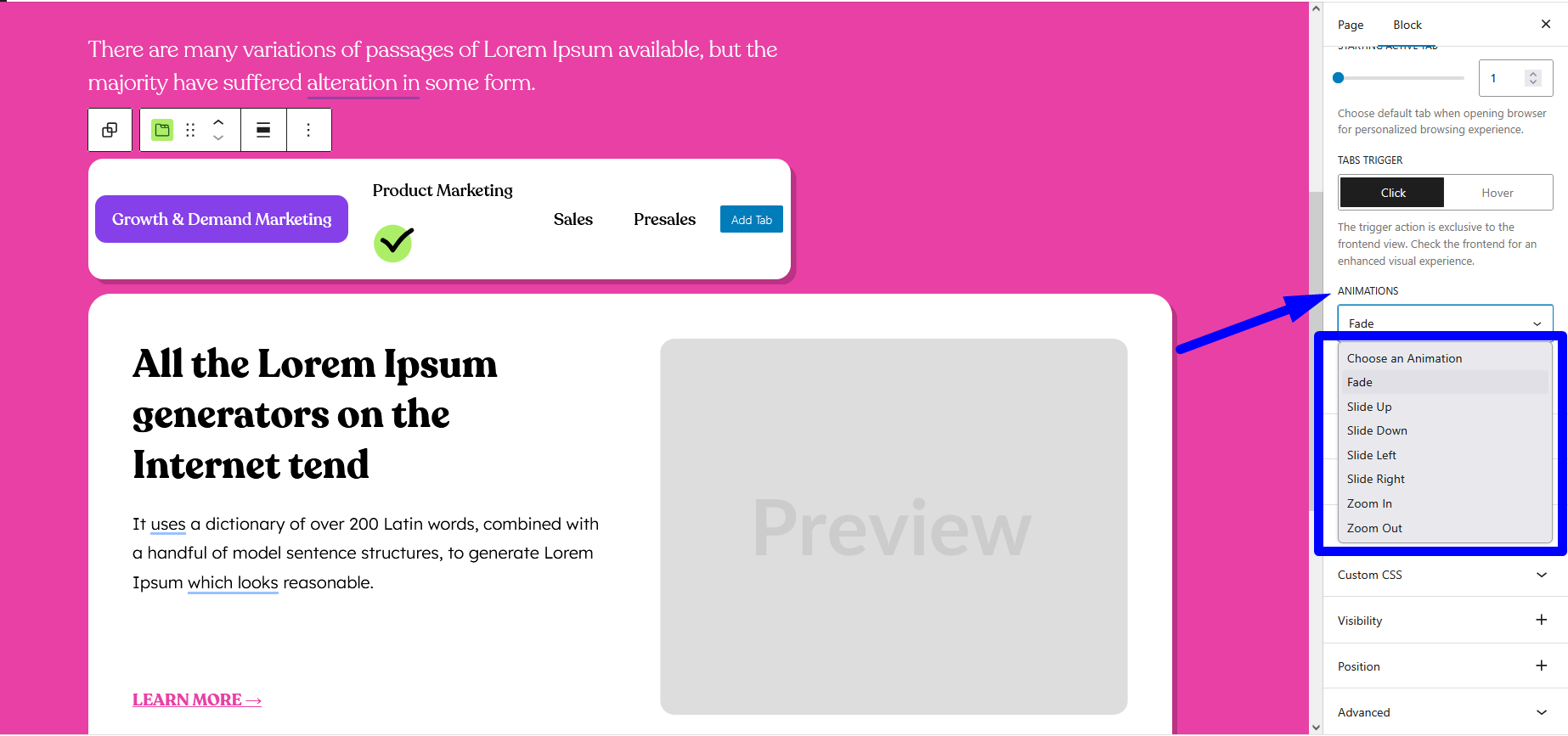
The Animation panel in the block sidebar.

Animation Settings Controls – placeholder image

Animation Type

Choose from seven built-in transition effects:

  • Fade: Smoothly fade panels in and out.
  • Slide Up: Panels slide upward.
  • Slide Down: Panels slide downward.
  • Slide Left: Panels slide to the left.
  • Slide Right: Panels slide to the right.
  • Zoom In: Panels scale in (zoom closer).
  • Zoom Out: Panels scale out (zoom away).

Tip: Use subtle fades or slides for content-heavy tabs; zoom effects work well for image-focused layouts.

Easy Tabs Block

The simplest way to organize content, boost engagement,
and save time.

Company

  • About
  • Blog
  • Patterns
  • Contact Us

Quick Links

  • Documentation
  • Privacy Policy
  • Terms of Service
  • Refund Policy

Follow Us

  • Facebook
  • Twitter/X
  • Linkedin
  • Youtube

@ 2026 EasyTabsBlock. All rights reserved.