Skip to content
Easy Tabs Block
  • Features
  • Patterns
  • Why Us
  • FAQs
  • Pricing
  • Free Download
Login
Download
  • Getting Started
  • Using Pre-Designed Patterns
  • Tab Button Styles (Active & Hover)
  • Responsive Tab Settings
  • Managing Tabs (Duplicate/Delete)
  • Using Icons Inside Tabs
  • Tab Animation Settings
  • Autoplay & Progress Bar (Pro)
  • Scroll-Synced Sticky Tabs (Pro)
  • Tab Expander (Collapsible Tab) (Pro)
  • URL-Based Tab Activation (Pro)
  • How to Creating Nested Tabs
  • How to Create Edge-Aligned Tabs

How to Create Edge-Aligned Tabs

Welcome to Easy Tabs Block, the no-code way to create responsive, customizable tabbed content directly from the Gutenberg editor. Follow this guide to get up and running in minutes.

We are going to show you how you can move around the tabs to multiple positions to customize the tabs the way you like.

Let’s see.

How to Customize the Multiposition Tabs

First, you need to click on the Start Blank button after choosing the Easy tabs block from the blocks-
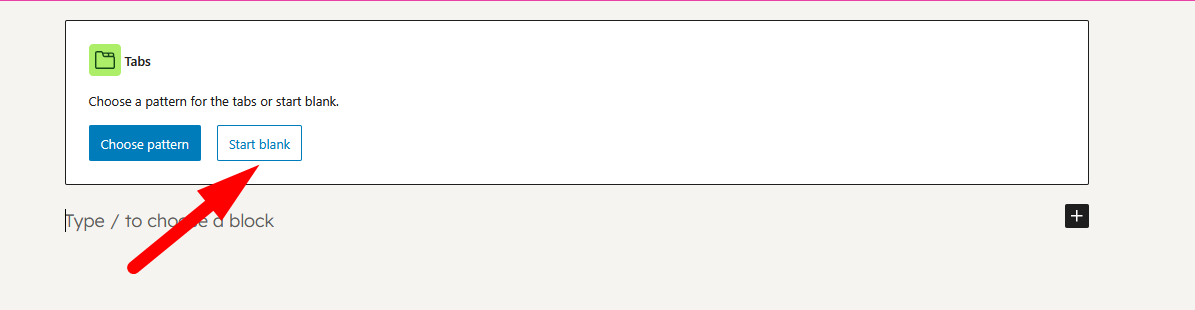
 Click on the Start Blank button
Click on the Start Blank button

You can move the tabs up and down by clicking the “Move Down” and “Move Up” options, just like the screenshot-
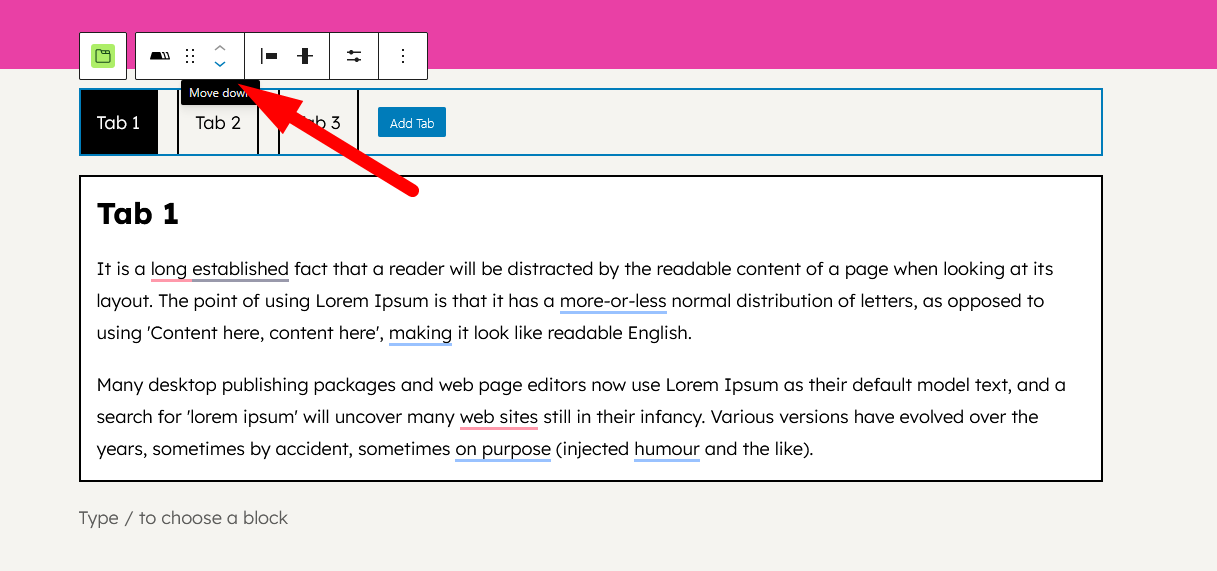
Clicking the "Move Down" and "Move Up" options
Clicking the “Move Down” and “Move Up” options

When you move down, here is what the tab design will look like-
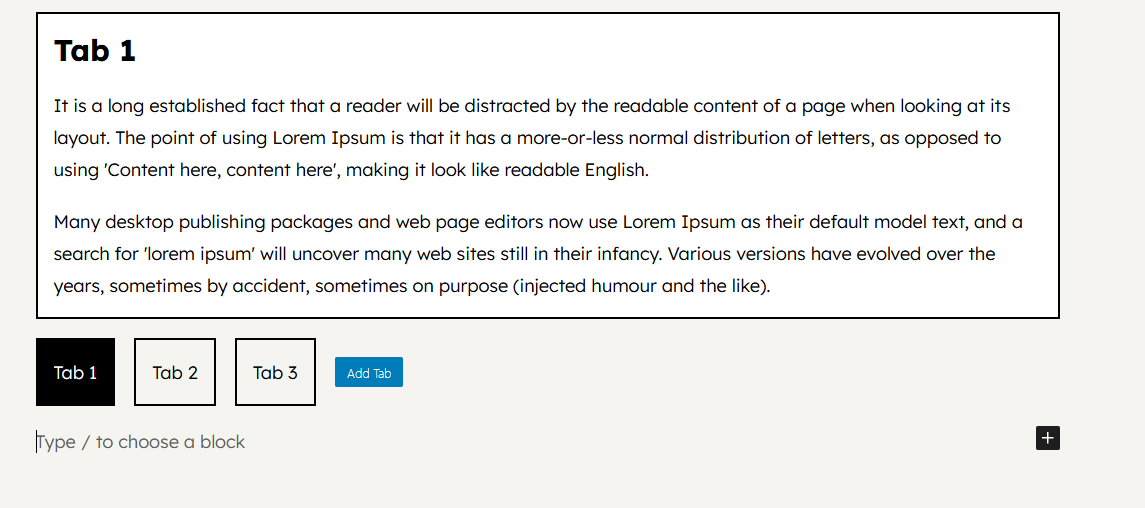
The tab design
The new tab design

If you want to move the tabs left and right, then on the right-hand side, open the Outline menu and choose the Tabs option.

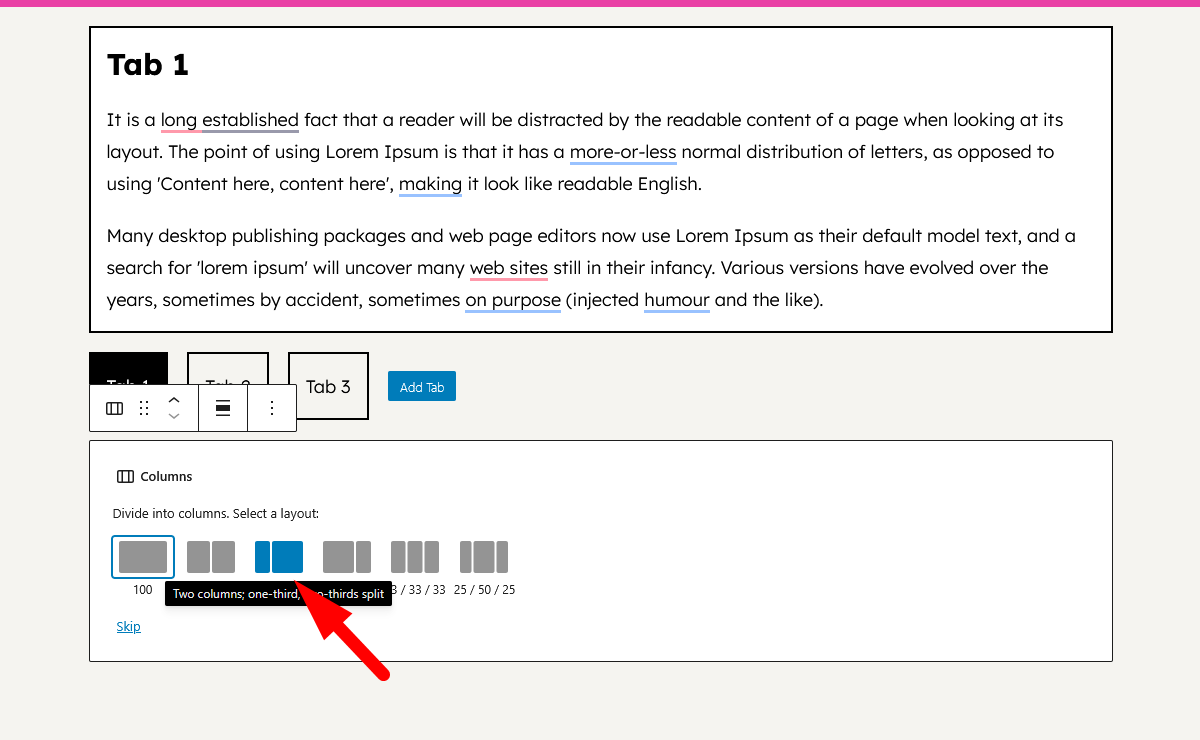
Then, click on the + button and choose the Column block-
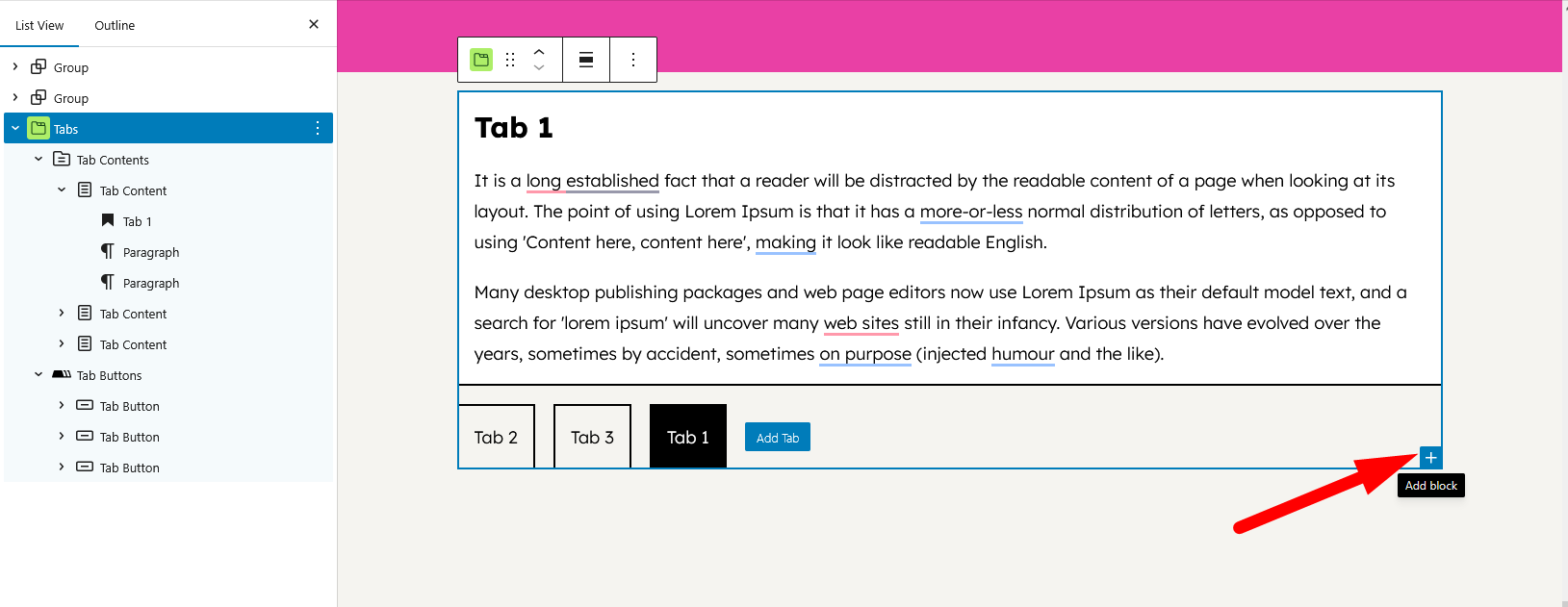
Click on the + button

Choose the 3rd column option-

Choose the 3rd column

Then, to make the tabs place one after another, drag the Tab button option right below the first column option, just like the screenshot below –
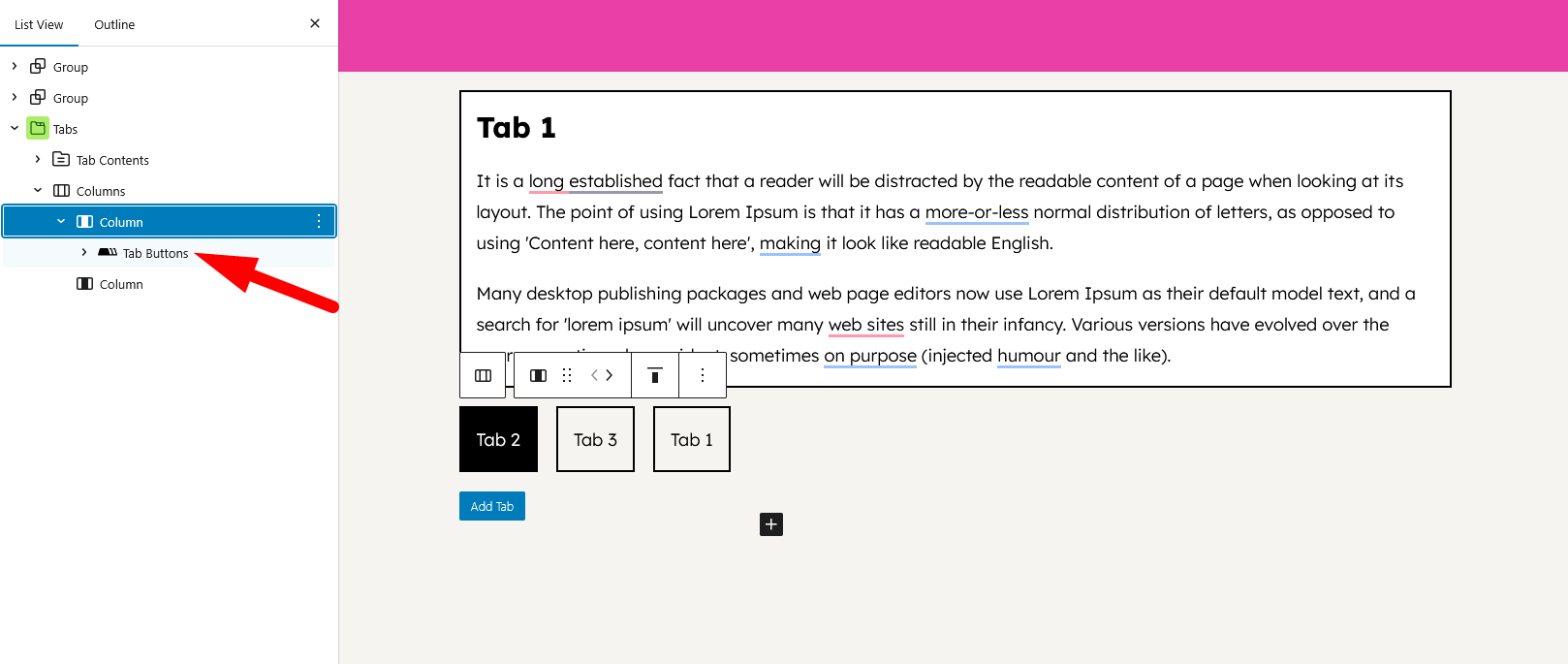
Drag the Tab button option right below the first column option

Then, choose the Downward orientation option to stack them one after another-
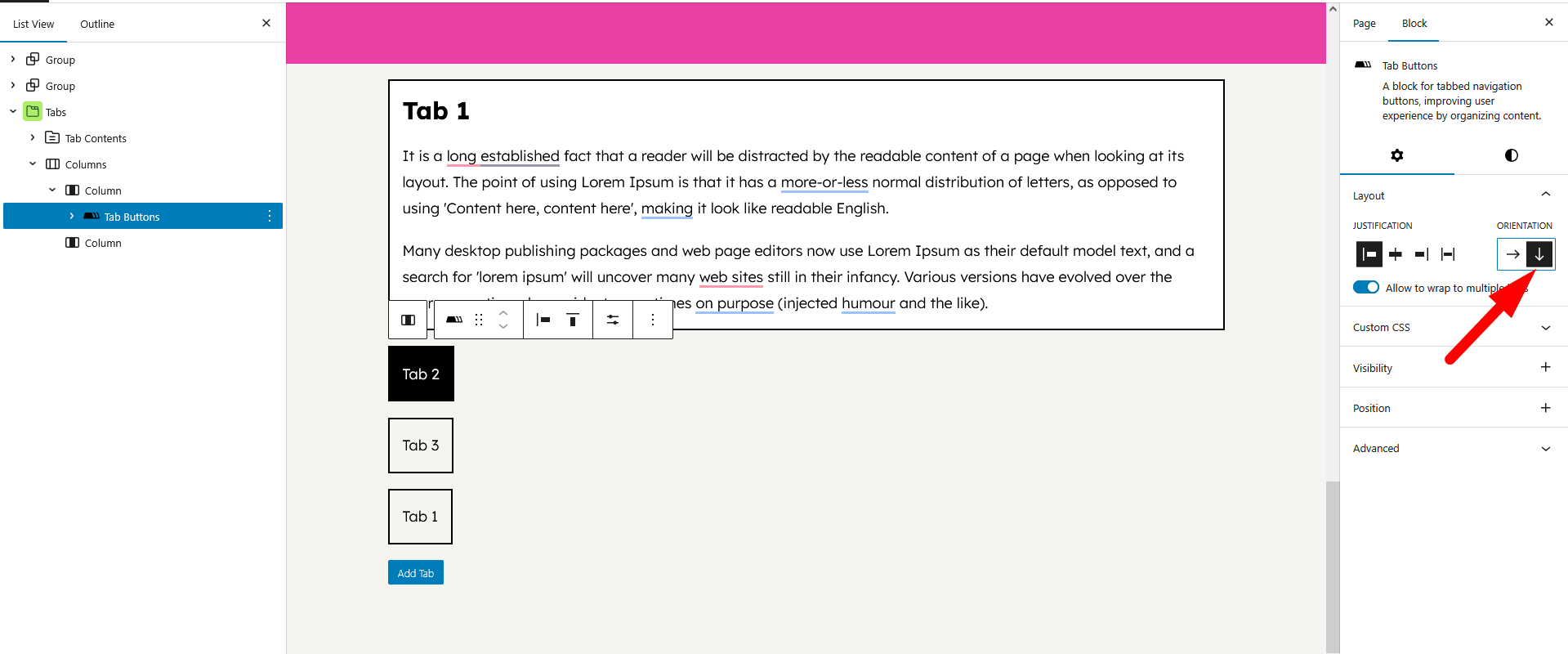
Choose the Downward orientation option

Now, drag the Tab Content option under the second column option so that the content of the tabs will be side by side-
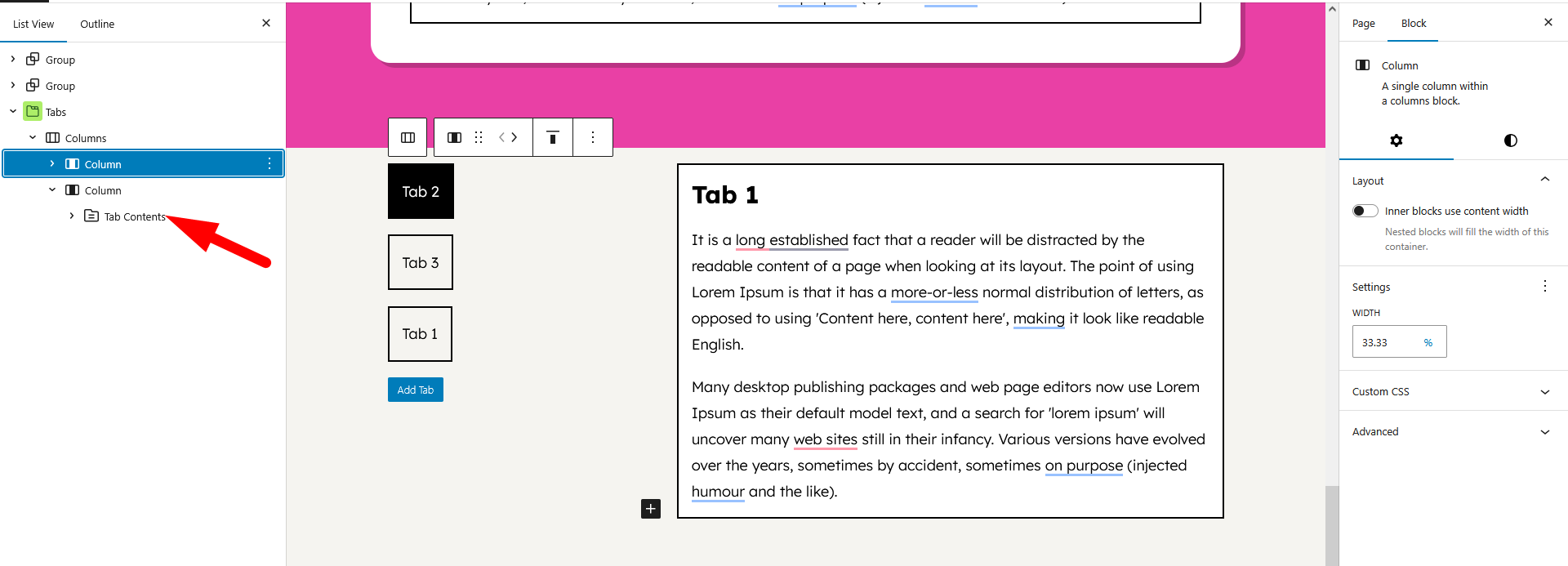
Drag the Tab Content option under the second column

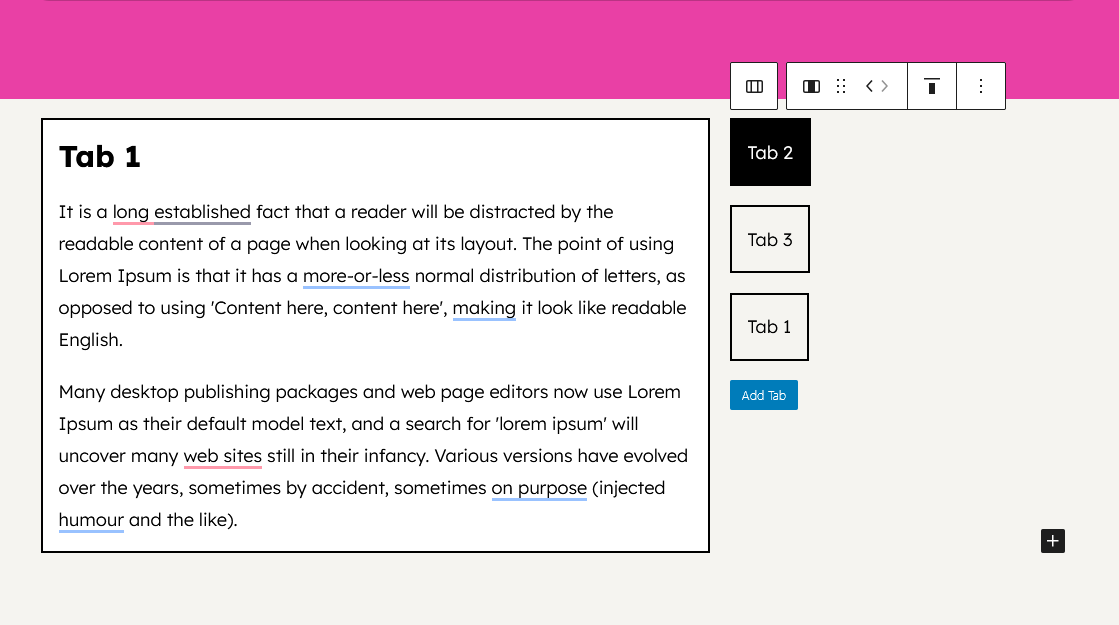
If you want to move the tabs left and right, then click on the “Move Right” and “Move Left” buttons –
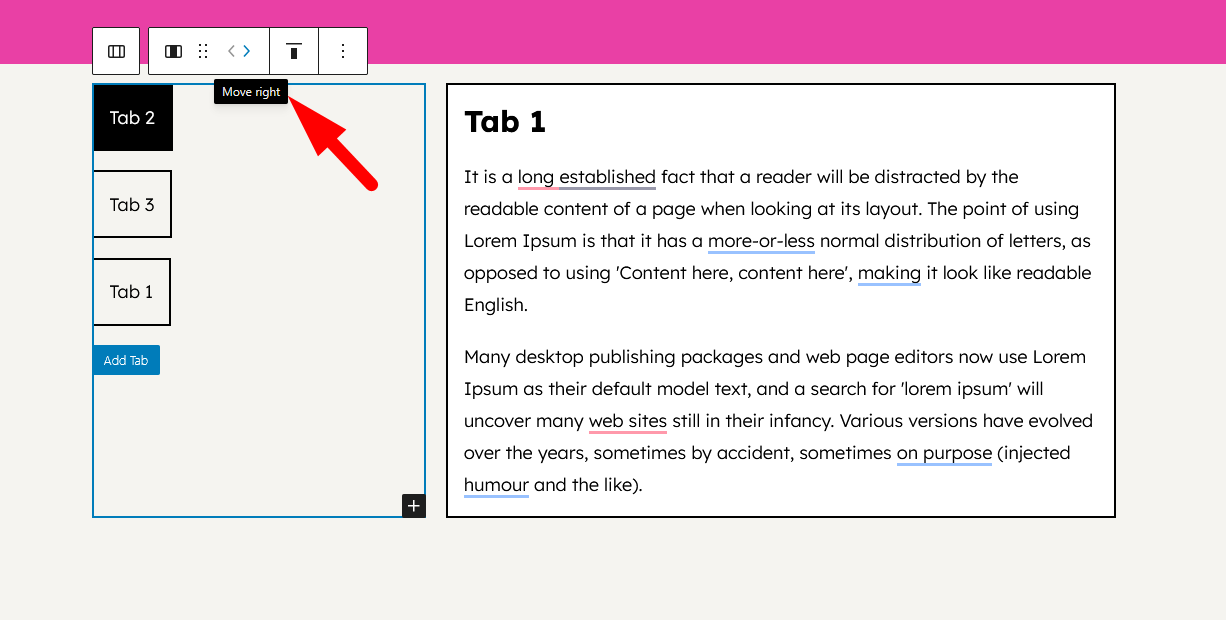
Click on the "Move Right" and "Move Left" button
Click on the “Move Right” and “Move Left” buttons

This is what it will look like-

Tab button on the left

This is how you can use the Mult-position feature of the Easy Tabs plugin.

Easy Tabs Block

The simplest way to organize content, boost engagement,
and save time.

Company

  • About
  • Blog
  • Patterns
  • Contact Us

Quick Links

  • Documentation
  • Privacy Policy
  • Terms of Service
  • Refund Policy

Follow Us

  • Facebook
  • Twitter/X
  • Linkedin
  • Youtube

@ 2026 EasyTabsBlock. All rights reserved.