

How to Duplicate/Delete Tabs
Easily duplicate or delete tabs and their content directly within the Gutenberg editor. These built-in controls help streamline your workflow, making it faster to build, edit, or reorganize your tabbed layouts.
The Duplicate/Delete feature lets you:
- Duplicate an existing tab (and its entire content) with one click.
- Delete a tab you no longer need, removing both the tab button and its content panel.
These actions work on both free and Pro versions, and they support nested tabs, too.
How to Duplicate a Tab
Select the Tabs Block and click on your Tabs container in the editor. Activate the Tab Button Toolbar and hover over the tab button you want to clone. A mini-toolbar appears above it.Click the “Duplicate” icon in the tab’s toolbar.
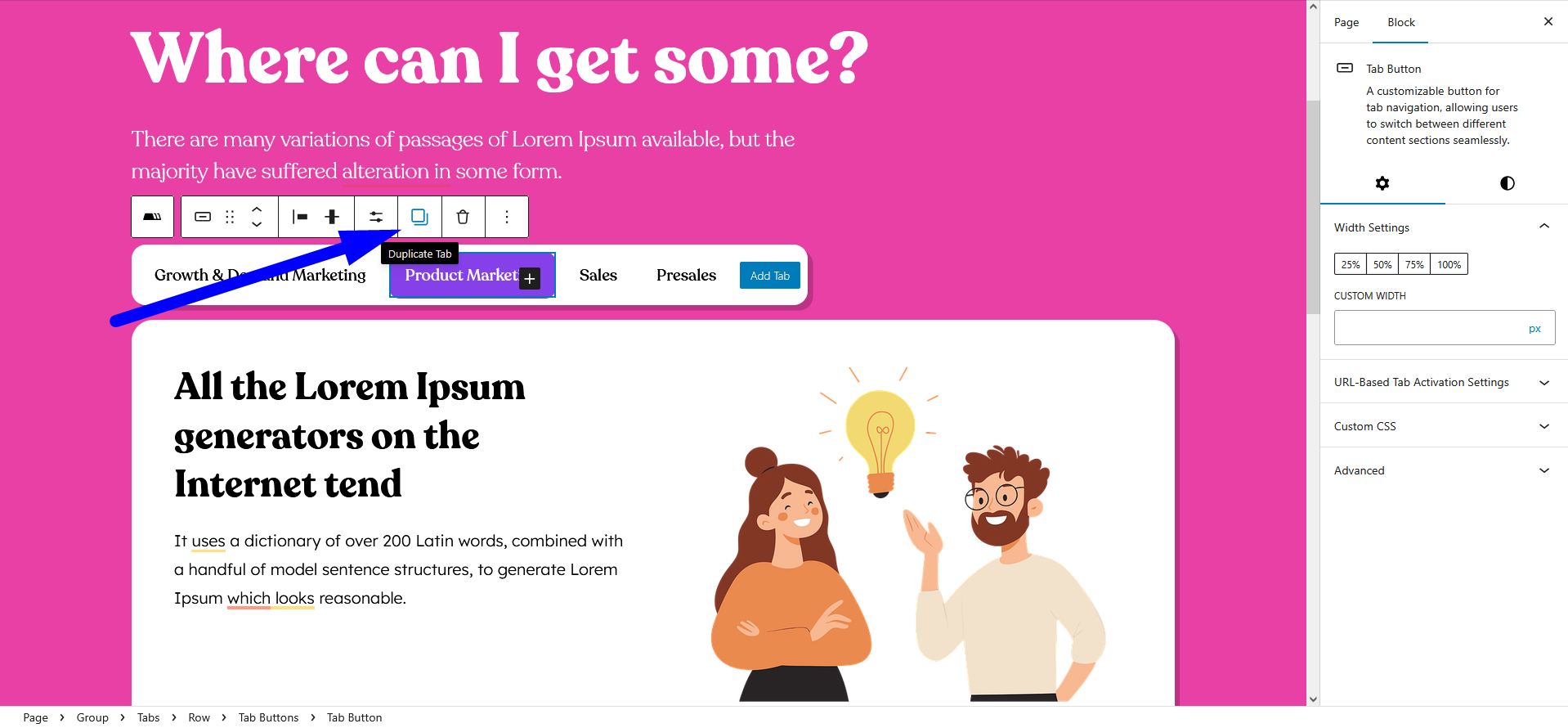
Click “Duplicate” and the selected tab button and its associated content panel are instantly copied and added to the right.
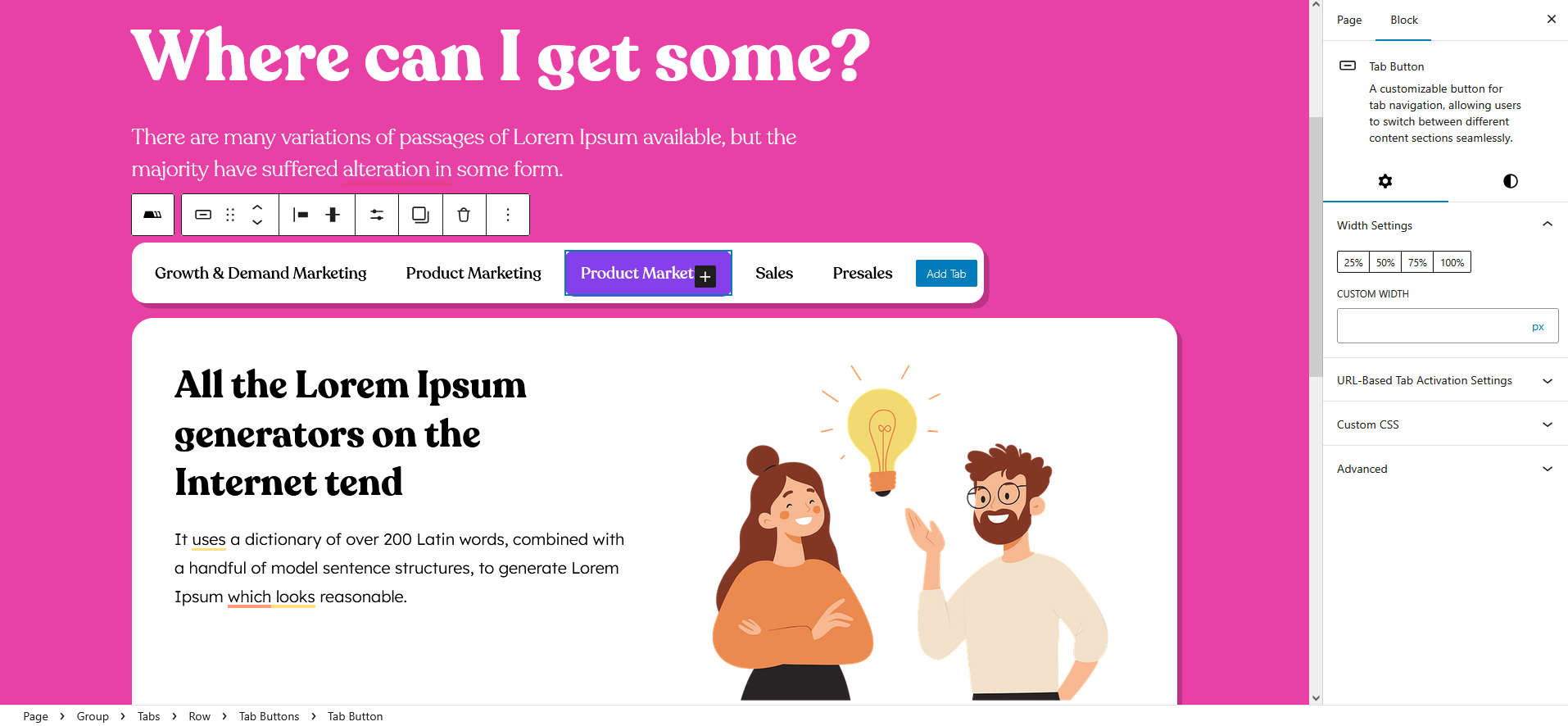
Drag the new tab button to reposition it, then update its label and content as needed.
How to Delete a Tab
Select the Tabs Block and click on your Tabs container in the editor.
Activate the Tab Button Toolbar. Then hover over the tab button you want to remove.
Click the “Delete” icon to remove a tab.
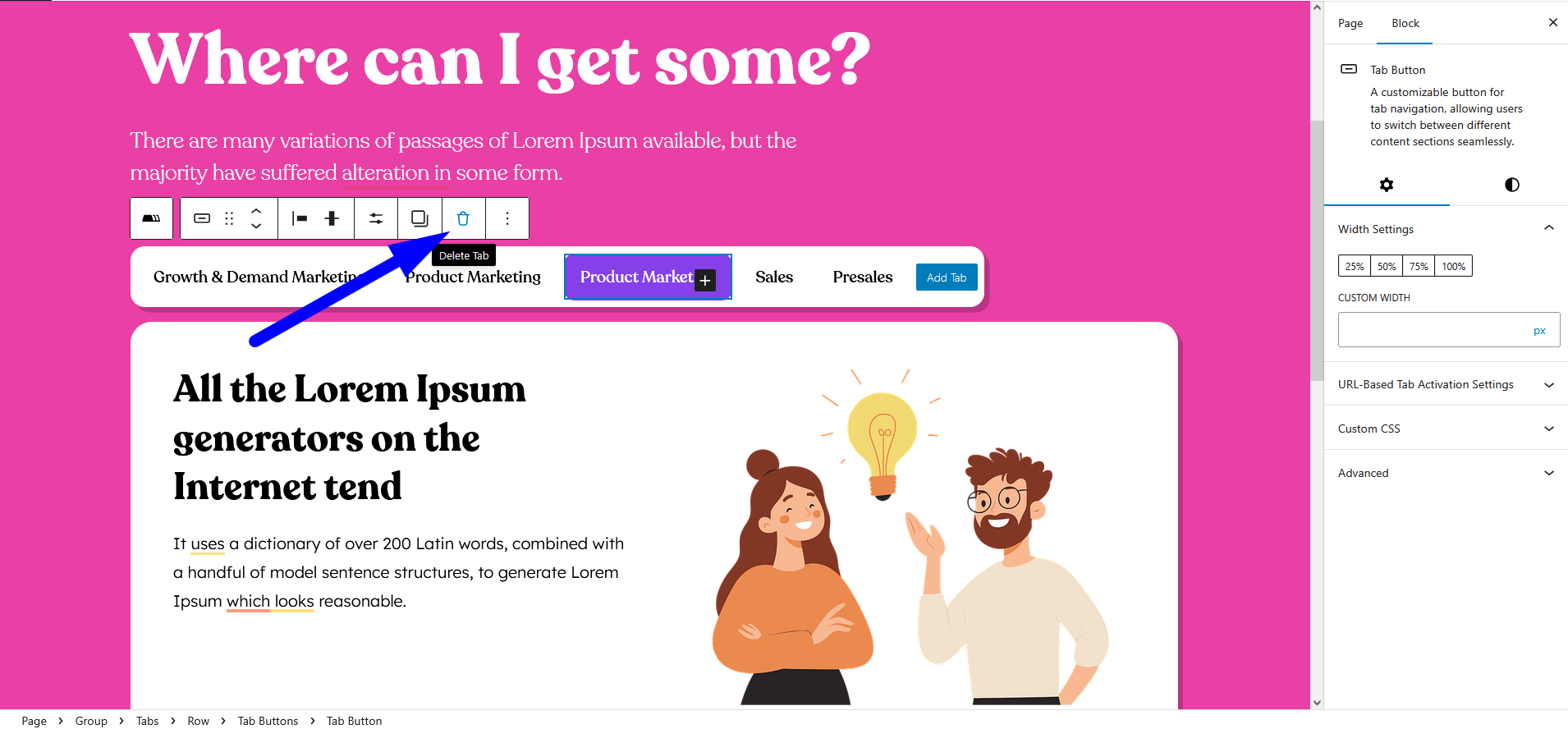
Click “Delete” and the tab button and its content panel will be permanently removed.
If you delete by mistake, use Undo (Ctrl/Cmd + Z) immediately in the editor.
Tips & Best Practices
The Easy Tabs Block makes bulk setup simple by allowing you to duplicate a fully styled tab, ensuring consistent formatting across different sections. This also applies to nested tabs, which you can duplicate or delete just like top-level tabs. Removing unused tabs helps improve performance by reducing page size and keeping your layout clean. And if you make a mistake, Gutenberg’s undo history lets you quickly revert accidental deletions with ease.
With Duplicate/Delete, managing large tab sets becomes fast and error-free—no extra clicks or manual copy-paste required!