

Autoplay & Progress Bar
The Autoplay & Progress Bar feature lets your tabs cycle automatically and shows users how much time remains before the next slide. It’s perfect for showcasing featured content, tutorials, or timed announcements without requiring clicks.
NOTE: To use the progress bar feature, you must first enable the Autoplay feature.
Where to Find the Settings
Select your Tabs block in the editor to access additional features. In the block sidebar under Autoplay Settings, enable Autoplay to allow automatic tab switching, then set the switching speed and define how the tabs behave on hover.
To enhance the visual experience, go to Progress Bar Settings and toggle the Progress Bar option to show a countdown indicator. You can also choose its position and adjust its thickness. For color customization, switch to the Styles tab in the sidebar and modify the Progress Color and Background Color to match your site’s design.
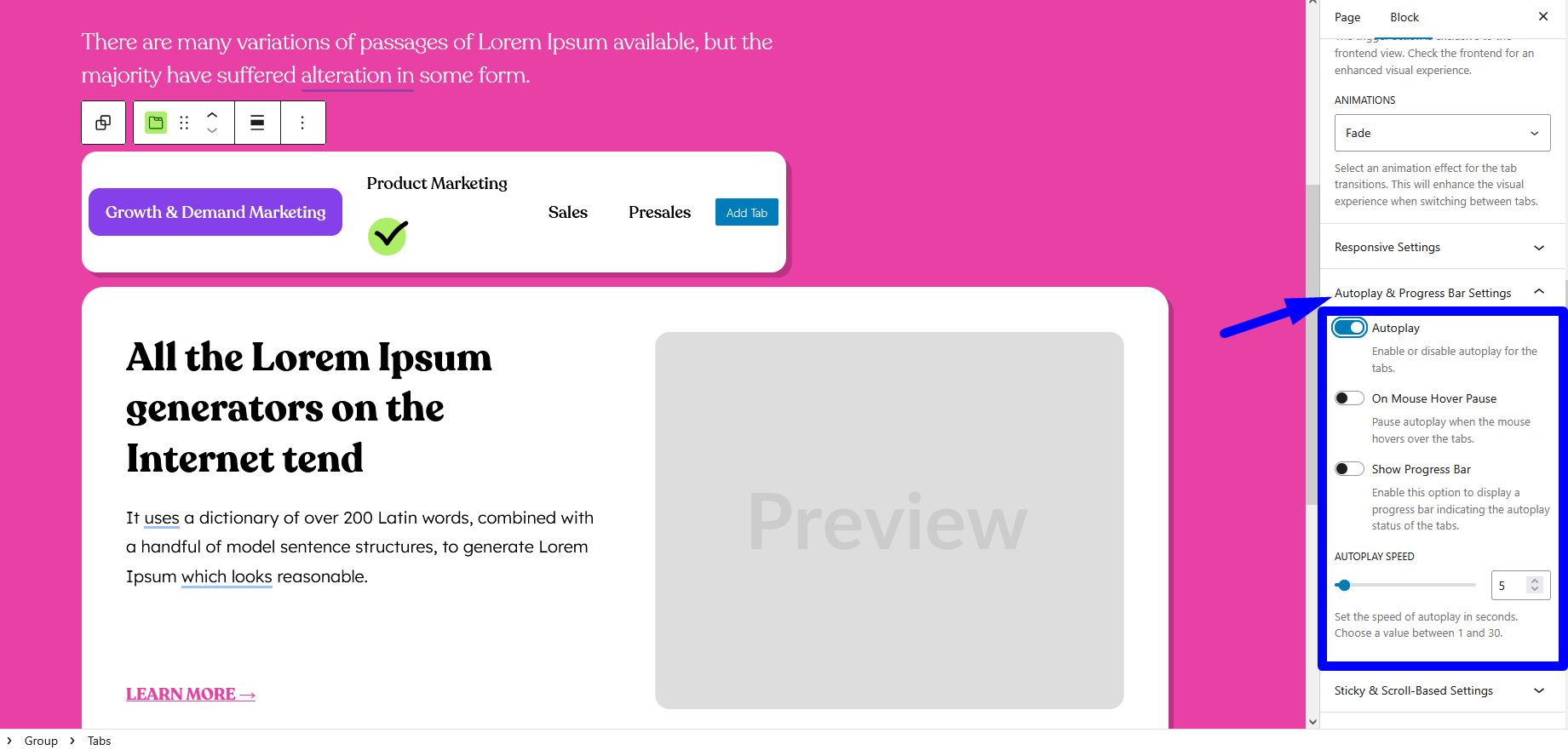
Autoplay Options
Autoplay: Enables automatic cycling through tabs without clicking. Autoplay is only active when the Trigger Type is set to Click; if you choose Hover, the tabs switch on mouseover instead, so autoplay is disabled.
Additionally, autoplay cannot run alongside Sticky & Scrollable Tabs, as those behaviors take over tab interaction and timing.
Speed: Define how long each tab stays visible before moving to the next (1–30 seconds).
Pause on Hover: When enabled, hovering over the tab content will pause autoplay until the cursor leaves.
Progress Bar Settings
- Progress Bar: Show or hide the progress indicator beneath the tabs.
- Position: Choose where the bar appears:
- Top (above tab buttons)
- Bottom (below tab content)
- Left (vertical bar on the left side)
- Right (vertical bar on the right side)
- Thickness: Define the bar’s height or width in pixels for a subtle or prominent look.
- Background: Set the track color behind the progress indicator.
Color controls are located under the Styles tab:
- Click Styles in the block sidebar.
- Adjust Progress Color for the fill and Background Color for the track.
How the Autoplay & Progress Bar Feature Works
To use the Autoplay and Progress Bar feature, start by enabling Autoplay and selecting your preferred switching speed.
Then, toggle the Progress Bar option and choose its placement and thickness for better visibility.
Head over to the Styles tab to customize the progress and background colors to match your site’s design. Finally, preview your tabs in the editor or on the live page to fine-tune the timing and styling for the best user experience.
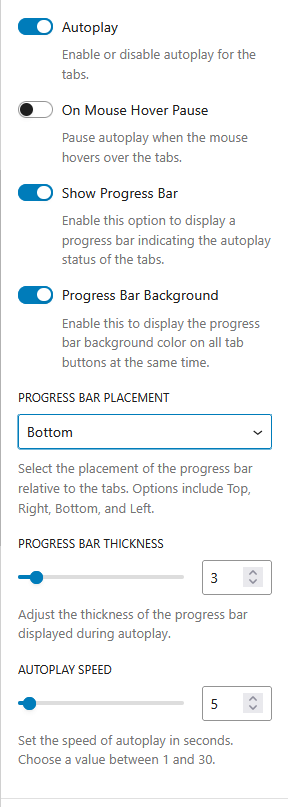
With Autoplay & Progress Bar, you can create dynamic, self-running tab experiences that engage users and guide them through your content effortlessly.