


WordPress accordion blocks are one of the easiest ways to organize long content in a compact layout. They help readers explore information step by step without feeling overwhelmed by large sections of text.
If you use WordPress and work inside the Gutenberg editor, having a smooth accordion experience can make your pages easier to read and easier to build.
That’s where Easy Tabs Block comes in. It includes a flexible Accordion Mode that lets you create collapsible sections with just a few clicks. You don’t need extra plugins, shortcodes, or custom code. Everything works naturally inside the editor you already use.
In this guide, we’ll walk through what accordion blocks are, why they’re helpful, and how you can use the accordion pattern in Easy Tabs Block to organize your content more effectively.
What are Accordion Blocks?
Accordion blocks are collapsible content sections that open and close when a user clicks on them. Each section has a title, and the content stays hidden until the visitor wants to read it. This keeps your pages clean and allows readers to focus on one piece of information at a time.
In WordPress, accordion blocks are especially useful for long or structured content. Instead of showing everything at once, you can break your page into smaller, organized panels. This makes your layout easier to scan, faster to navigate, and more friendly on mobile devices.
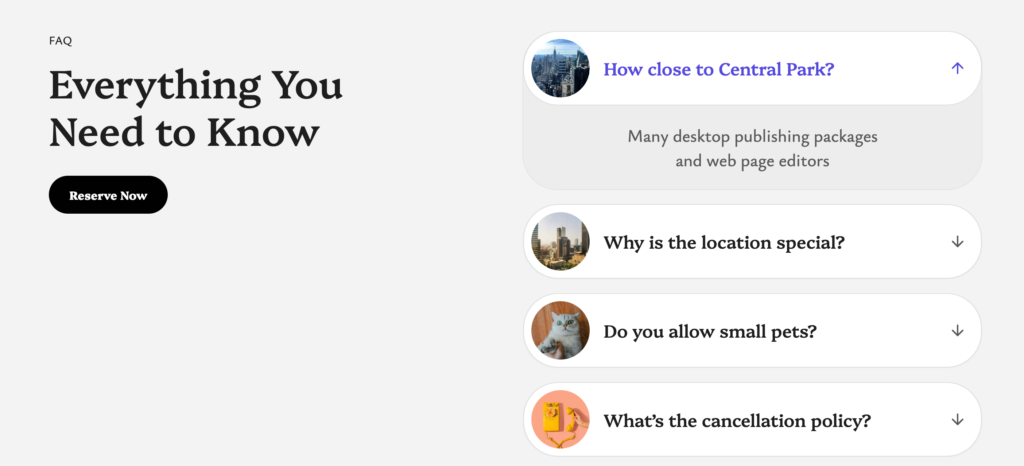
Accordion blocks are commonly used in FAQs, documentation, tutorials, product details, and any page where you want to present information in a more compact way.
Why You Should Use an Accordion Block
An accordion block helps you share information in a way that feels simple and easy to read. Your page stays clean, and visitors can focus on one topic at a time instead of scrolling through long sections.
- Improves readability: Many websites show long paragraphs that look heavy. An accordion breaks them into small sections. Readers can open one part, understand it, and move on without feeling tired.
- Reduces clutter: When you hide extra text inside panels, your page looks neat. People see clear headings instead of a long wall of text. It creates a calm reading experience, especially on phones.
- Guides visitors smoothly: Each panel has a clear purpose. Users can move through the topics in the order they prefer. It feels natural and gives them more control over their experience.
- Perfect for detailed content: FAQs, guides, product details, lessons, and tutorials all fit well inside an accordion layout. Readers get the information they need without jumping around the page.
An accordion block helps you share more information without overwhelming your audience. It creates a simple flow that readers enjoy, and it makes your page feel more polished.
Best Use Cases for Using an Accordion Block
A WordPress accordion block helps you present detailed content in a simple and reader-friendly format. It brings order to long pages and helps visitors move through information without feeling tired.
1. FAQ Sections
FAQ pages answer many questions that users often ask. They help visitors find quick solutions without contacting support.
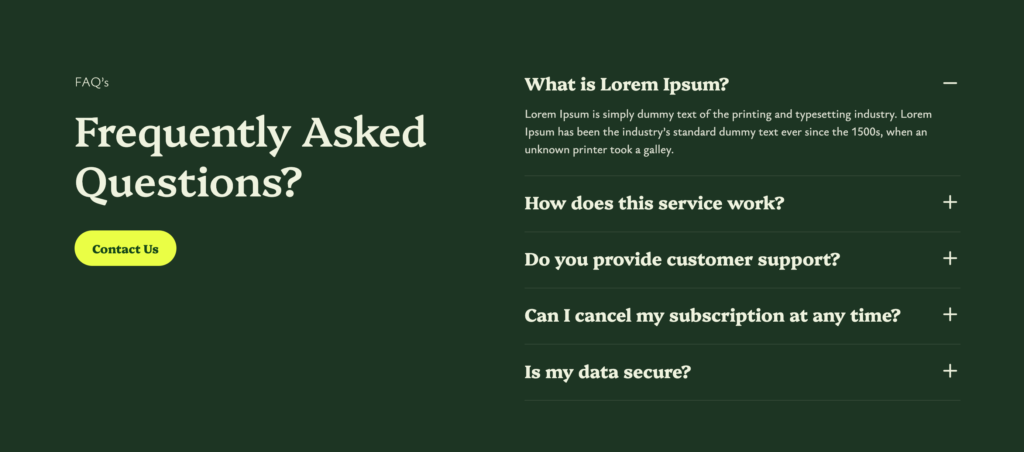
A WordPress accordion block keeps every question inside its own panel. Readers open only the questions they care about. It cuts down on scrolling and keeps the entire page neat. The flow feels natural, and each answer gets the space it needs.
2. Product or Service Information
Product or service pages usually contain features, pricing details, policies, benefits, and technical specs. Showing everything at once can make the page look heavy.
An accordion block breaks the content into clean sections. Shoppers can jump straight to features, size details, or warranty information. It makes your offer easy to understand and helps users make faster decisions.
3. Documentation or Knowledge Base
Documentation often covers many topics, solutions, and instructions. Readers visit these pages with a specific question in mind.
A WordPress accordion block organizes topics into small pieces. Users can expand one part, read the instructions, and collapse it when done. It keeps the page tidy and helps them locate answers without scanning long paragraphs.
4. Step-by-Step Guides
Guides and tutorials include several steps. If you show all steps together, readers may lose track or skip important parts.
Accordion panels separate the steps in a clear order. Users focus on one step at a time. They open the next one only when they are ready. It feels simple and keeps the learning flow steady.
5. Course Lessons or Learning Modules
Online lessons include explanations, examples, resources, and notes. When everything appears on one page, students can feel overwhelmed.
An accordion layout divides lessons into smaller modules. Each module stays hidden until the learner is ready to open it. This encourages a focused learning experience. It also helps creators present long educational content in a cleaner format.
A WordPress accordion block works anywhere you want to simplify long content. It brings clarity, reduces clutter, and gives visitors a smoother way to explore your page.
How to Use the Easy Tabs Block Accordion Pattern?
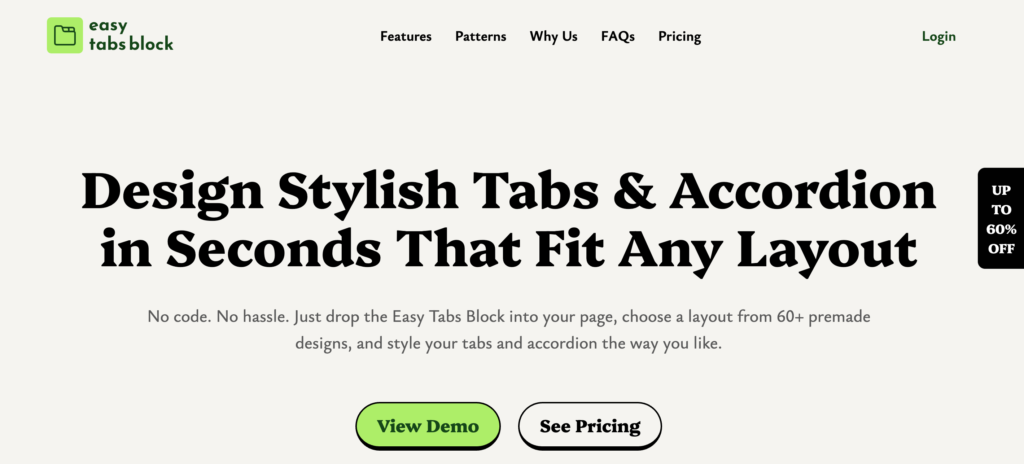
Using the Accordion Pattern in the Easy Tabs Block is simple. You can set it up inside the Gutenberg editor without using any extra tools. The pattern gives you a ready layout, so you only need to replace the text and adjust the style.
Note: The Accordion pattern is a premium feature of the Easy Tabs Block plugin. So, to use this feature, you have to upgrade to the pro version.
1. Add the Accordion Pattern
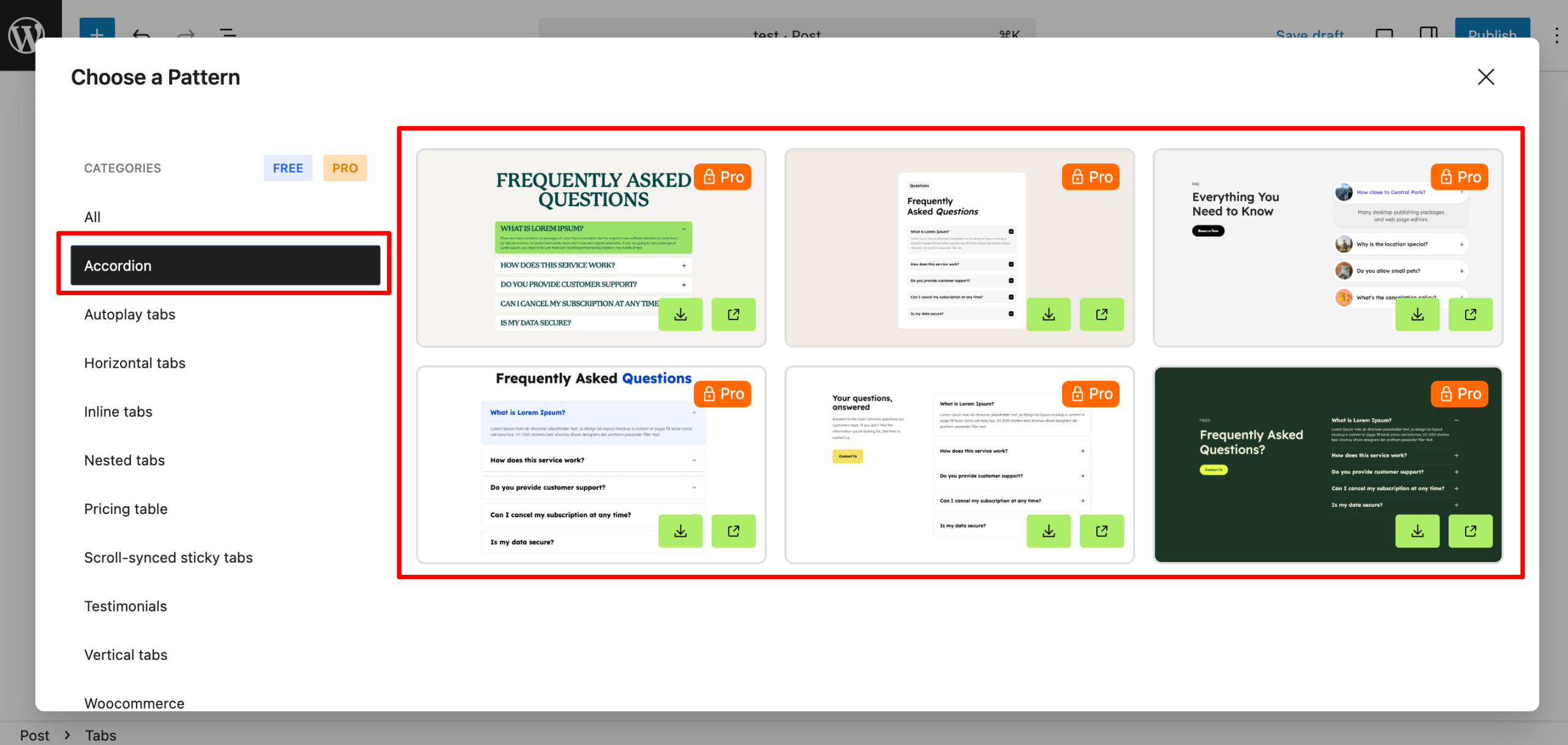
Open the block inserter and search for Easy Tabs Block patterns. You will see the Accordion Pattern in the list. Click on it, and the layout will appear on your page instantly.
2. Replace the Sample Titles
Each panel comes with a sample heading. Click on a heading and type your own. Keep them short so visitors can scan the list easily.
3. Add Your Content Inside Each Panel
Open a panel and add your text, images, lists, or any Gutenberg block you want. Each panel works like a small content area. You can place anything inside it.
4. Adjust the Style
Use the block settings to tweak colors, spacing, borders, or fonts. Small changes can help the accordion match your page design. You do not need custom code for this.
5. Reorder or Remove Panels
If you want to change the order, drag the panels up or down. If you need fewer sections, delete the extra ones. The editor responds quickly, so you can shape the layout the way you want.
6. Preview and Publish
Take a quick look at the page to see how the accordion behaves. Once everything looks good, publish it. Your visitors will interact with the panels the same way you do inside the editor.
The Accordion Pattern in Easy Tabs Block gives you a fast and simple way to organize long content. You can build a clean layout in minutes without learning anything new.
Wrapping up
A WordPress accordion block can make your content easier to read and much more organized. It helps you present long information in small sections, and your visitors get a smoother experience on every device. Easy Tabs Block gives you a simple way to do this inside Gutenberg without learning anything new.
The Accordion Pattern takes care of the layout for you. You only need to drop in your content and adjust a few settings. It’s quick, flexible, and fits almost any type of page. Once you start using it, you will notice how clean your pages look and how much easier it becomes to manage detailed content.
If you want a faster workflow and a cleaner design, it’s a good time to try the accordion feature in Easy Tabs Block. Your readers will appreciate the difference.