

Tabs are an easy way to organize content in WordPress. They help you break long pages into clean sections, so readers can jump straight to what they need.
Many website owners use tabs for FAQs, product details, services, and tutorials. They keep the layout simple and make the page feel lighter.
The best part?
You don’t need any code to add tabs in WordPress. You can create them using a block that fits right into the editor.
In this guide, you’ll learn what tabs are, why they’re helpful, and the easiest way to add them to your site.
So, let’s get started!
What Are Tabs in WordPress?
Tabs are small clickable labels that let you show different pieces of content in the same space. When a visitor clicks a tab, the content switches instantly without reloading the page.
You’ve seen tabs in many places – FAQs, product pages, feature lists, and documentation. They make it easy to display a lot of information without overwhelming the reader.
In WordPress, tabs are not built into the default editor. You need a block or plugin to create them. Once added, they work like regular content areas, except everything is neatly organized into sections the visitor can switch between.
Why Use Tabs on Your Site?
Tabs help you present information in a clear, organized way. They turn long, crowded pages into simple sections that are easy for visitors to navigate.
Here are a few reasons why you should use tabs on your WordPress site:
- Cleaner layout: Tabs divide your content into separate sections, so everything feels structured. Instead of showing everything at once, you reveal information only when the visitor wants it.
- Less scrolling: Long pages can feel overwhelming. Tabs reduce the need to scroll by stacking content behind simple labels. Visitors can jump to the right section with one click.
- Better mobile experience: Mobile screens have limited space. Tabs save room and prevent the layout from stretching too far down the page, making the reading experience more comfortable on phones and tablets.
- Faster content discovery: When information is organized into clear categories, people find what they need immediately. This improves the overall flow of your page and makes it easier for visitors to navigate.
- Higher engagement: Clear navigation keeps visitors on your site longer. They can switch between sections without distractions, which helps them stay focused and explore more of your content.
Tabs give your pages structure, clarity, and a smoother user experience, all with a simple and space-saving design.
How to Create Tabs in WordPress Using a Plugin
WordPress doesn’t include a built-in Tabs feature, so the easiest way to add tabs is by using a tab plugin. A plugin gives you a ready-made Tabs block that you can drop into any page or post. It keeps things simple, visual, and beginner-friendly.
One of the easiest options for this is the Easy Tabs Block plugin. It works directly inside the WordPress block editor, so you don’t have to deal with shortcodes or complicated settings. You can create clean, responsive tabs just by adding a block and typing your content.
Easy Tabs Block lets you insert any block inside a tab—text, images, videos, buttons, product details, anything you already use in WordPress. This makes it flexible for many types of pages, from FAQs to service sections to product descriptions.
With a plugin like this, creating tabs becomes a natural part of your editing workflow. Just open the editor, add the Tabs block, and start organizing your content into neat, easy-to-navigate sections.
Let’s check how you can create tabs in WordPress using the Easy Tabs Block plugin:
Step 1: Install and Activate the Plugin
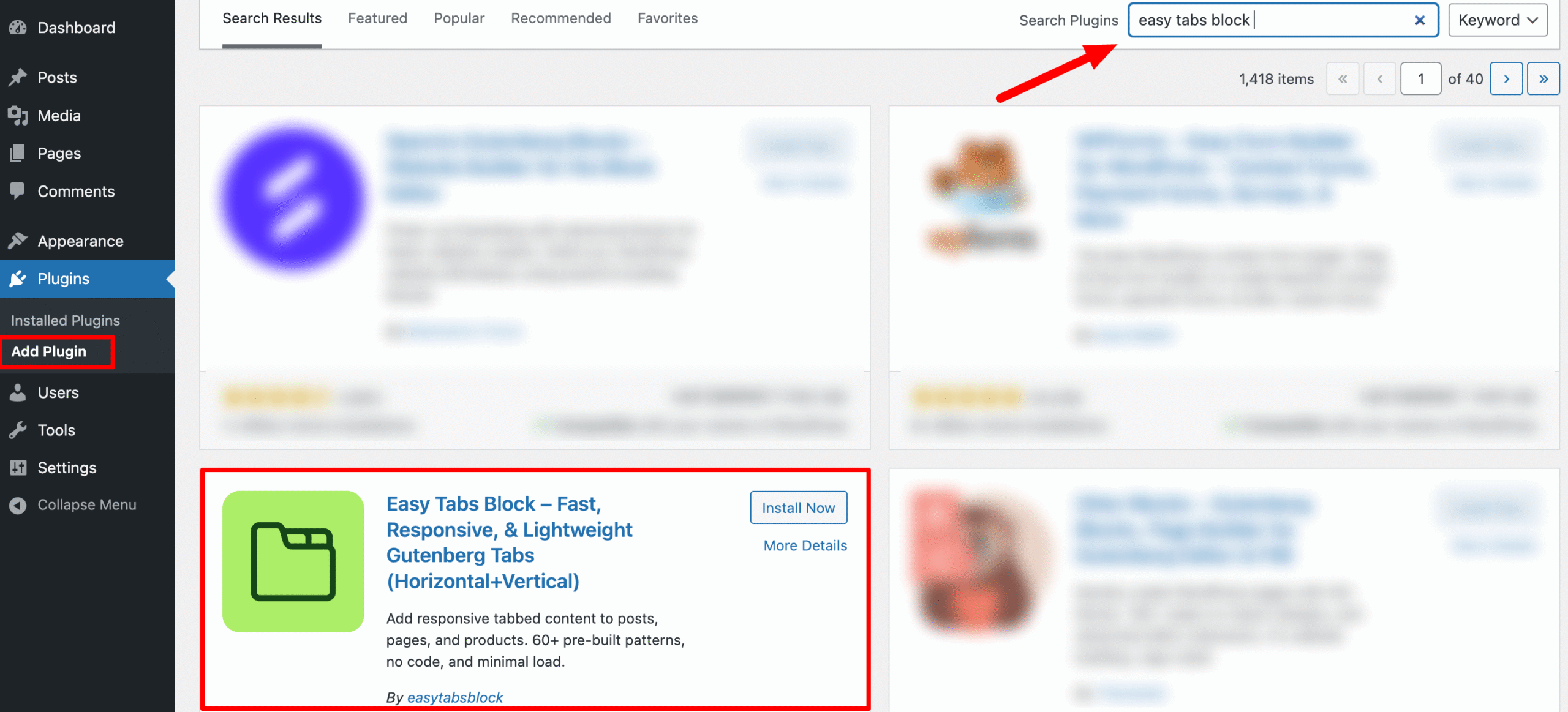
- In your WordPress dashboard, go to Plugins → Add New.
- Search for Easy Tabs Block, install, and activate.
- No external dependencies or code snippets—everything runs inside Gutenberg.
Step 2: Add the Tabs Block
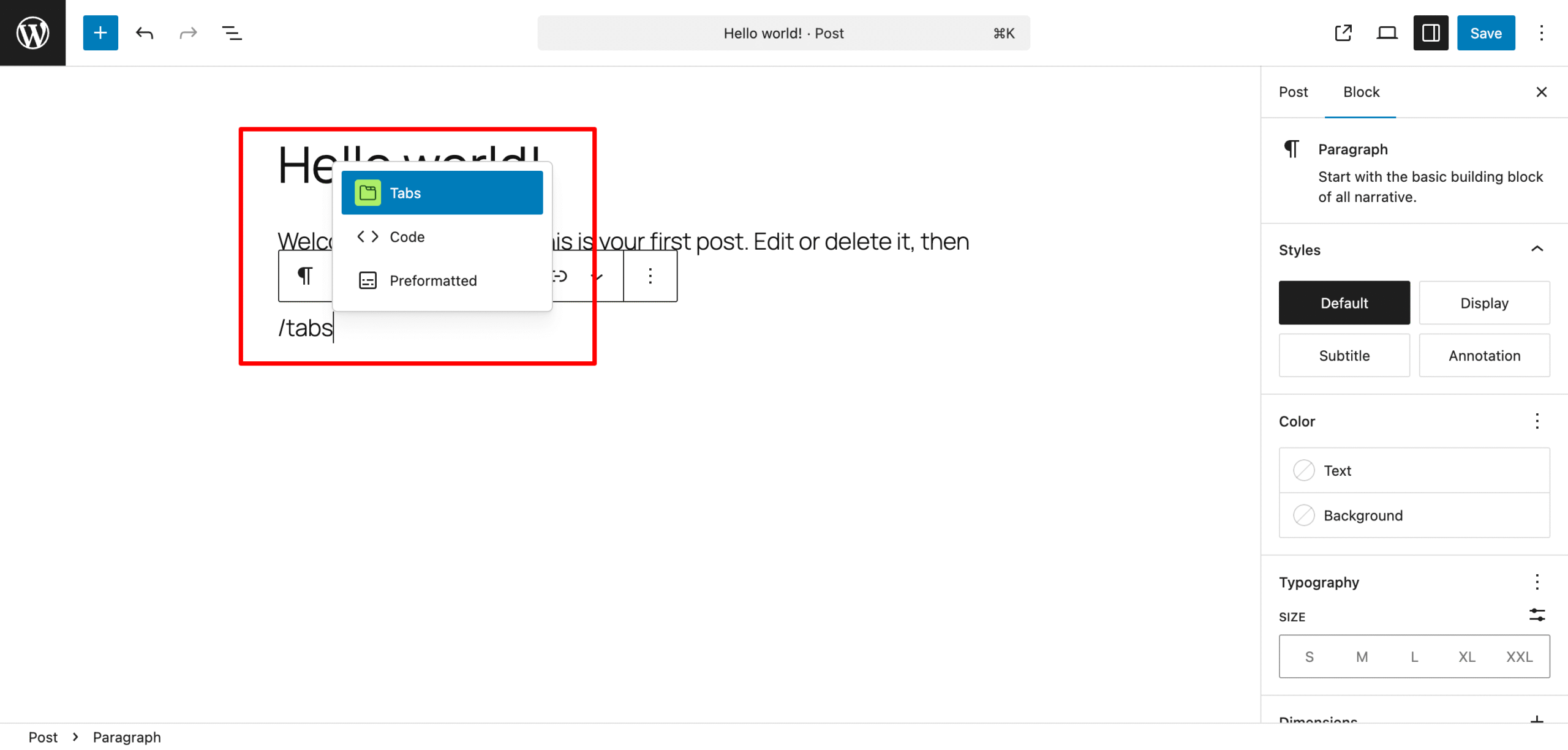
- Open the page or post where you want tabs.
- Click the “+” icon in the block editor and search for “Tabs”.
- Select the Easy Tabs Block to insert the container.
Step 3: Choose a Pre-Built Pattern
- With the Tabs block selected, click “Patterns” in the block toolbar.
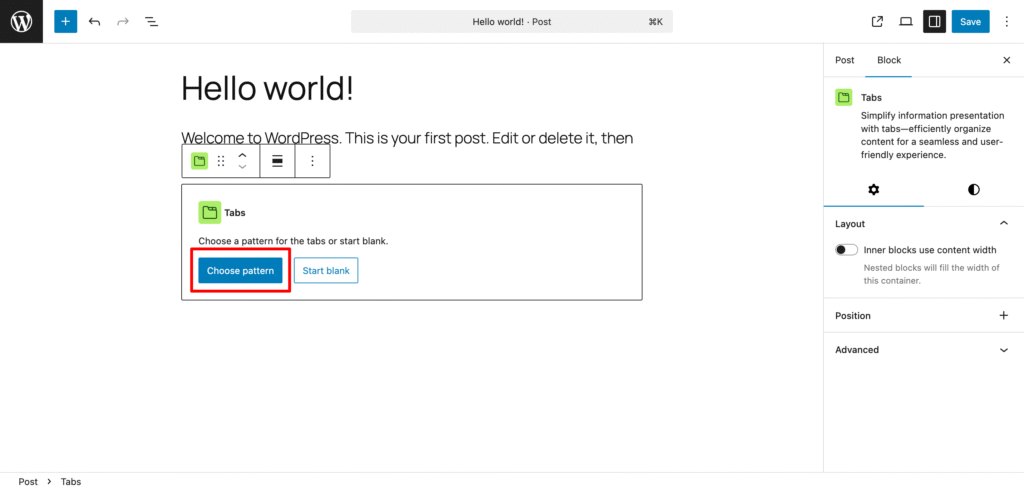
- Browse all the layouts and choose any layout you want to use.
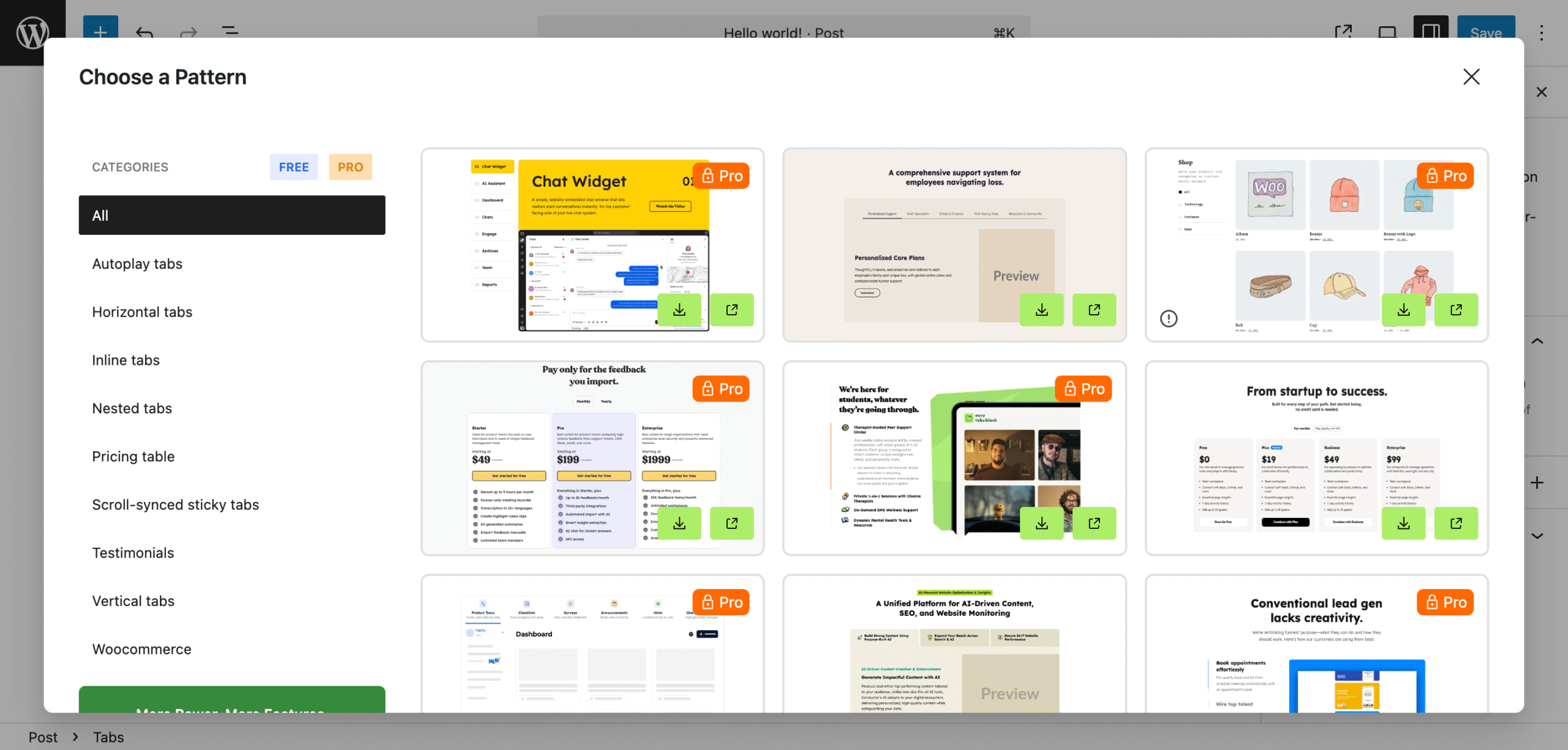
- Click your desired pattern to insert it instantly.
Tip: Start with a template that matches your content flow; you can always tweak later.
Step 4: Add and Arrange Tab Content
- Inside the Tab Buttons area, rename each button label (e.g., Overview, Features, Pricing).
- In the Tab Content panels, add any Gutenberg blocks—paragraphs, images, videos, shortcodes, or even nested tab layouts.
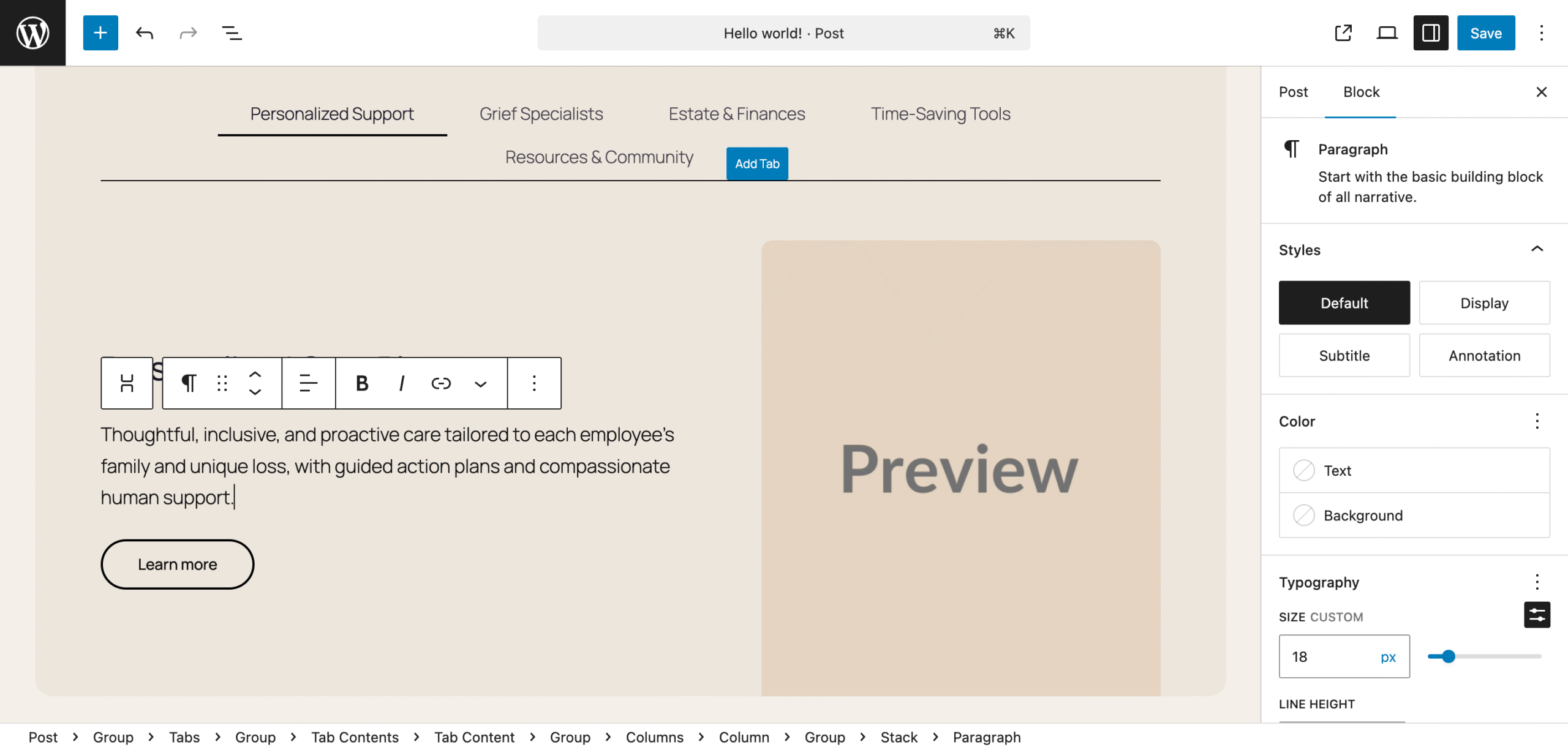
- To duplicate or delete a tab: hover over a Tab Button and use the Duplicate or Delete icons for quick edits.
Step 5: Customize Style
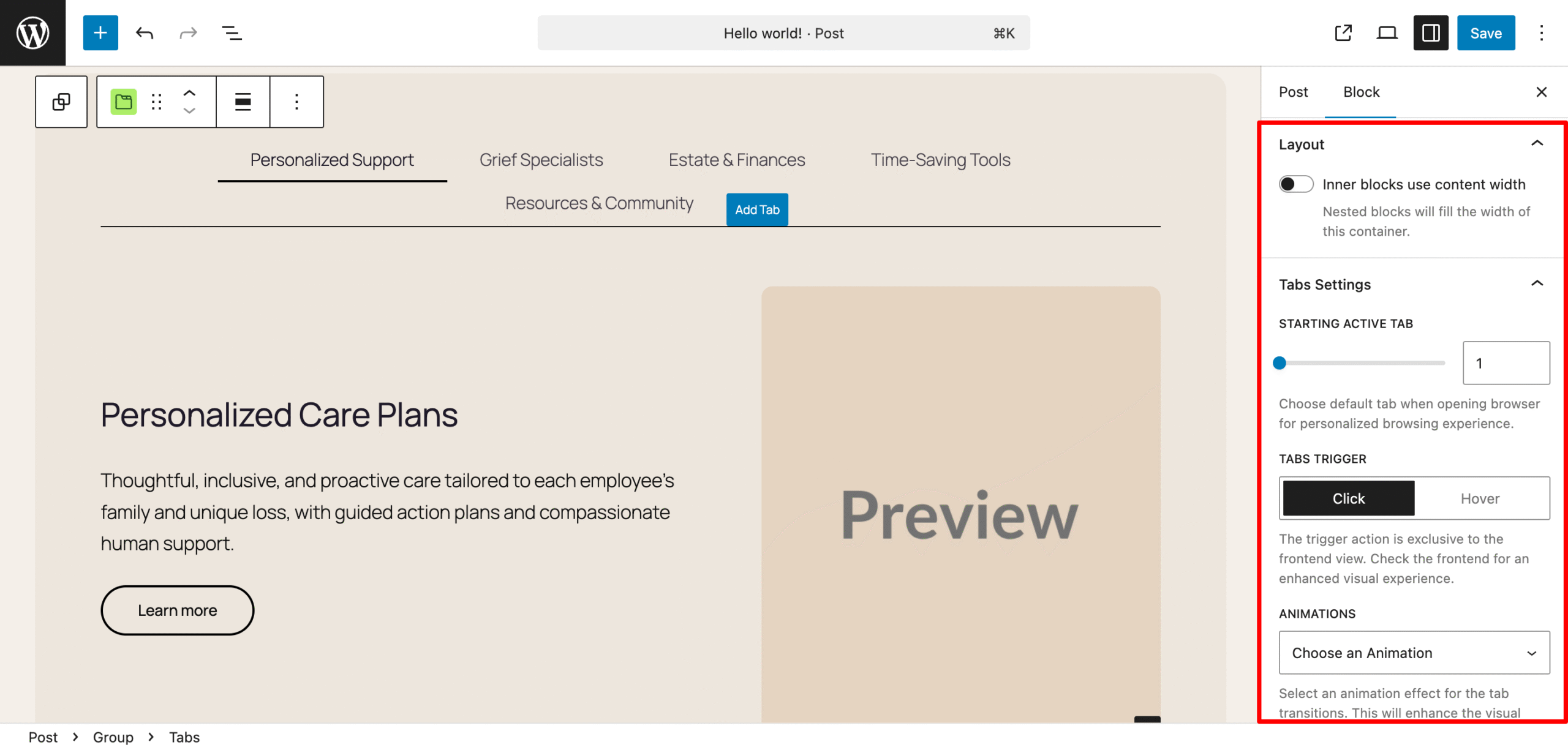
- Select the Tabs block and open the Block Settings sidebar.
- Here you can set the Starting Active Tab number, Tab Trigger option, and Animations.
- Now, if you want to customize the style of your tab, click on the ‘Styles‘ option.
- Here you can change the Background, Background Image, Padding, Margin, Radius, Border, etc.
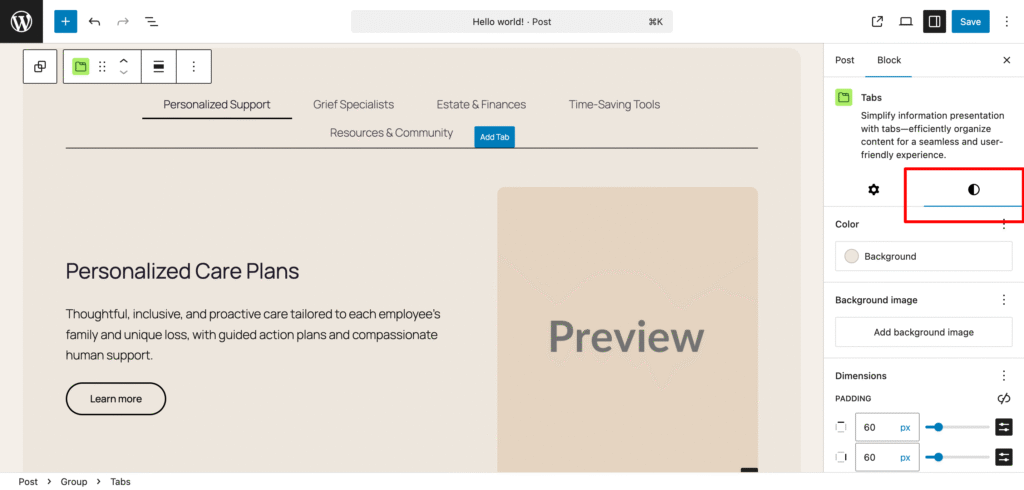
Once your customization is completed, you can simply hit the ‘Save’ or ‘Publish‘ button to make it publicly accessible.
Also Check – Best Free WordPress Tabs Plugin
Where Tabs Work Best on Your WordPress Site
Tabs are useful in many parts of a website. They help you present information in a way that feels organized and easy to explore. Here are some of the most common places where tabs make a real difference:
- FAQs: Long FAQ pages can feel messy. Tabs let you group questions by topic so readers can jump straight to the section they care about.
- Product descriptions: Many product pages have multiple details – features, specs, reviews, sizing, shipping info. Tabs keep all of this in one place without overwhelming the layout.
- Service pages: If you offer different plans or packages, tabs make it easy to compare options side by side without creating a long list.
- Documentation or guides: Technical content can get long. Tabs help split instructions, examples, and troubleshooting tips into clean sections.
- Tutorials: Multi-step tutorials or lessons feel more organized when each step has its own tab.
- Restaurant or café menus: Tabs are great for organizing categories like breakfast, lunch, dinner, drinks, or specials.
- Portfolio sections: Designers, photographers, and agencies can use tabs to separate different types of work – branding, web design, photography, etc.
Tabs shine in any situation where you have a lot of information but want to keep the page simple, tidy, and easy to navigate.
Related – 7 Must Have Gutenberg Plugins for WordPress Beginners
Pr Tips for Creating Better Tabs
Good tabs make your content easier to read. They should feel simple, clear, and effortless to use. Here are a few practical tips to help you create tabs that look great and work well:
- Keep tab labels short: Use simple words or short phrases. Clear labels help visitors understand what each tab contains without guessing.
- Group related content together: Tabs work best when each section focuses on a single topic. This keeps the layout logical and prevents confusion.
- Avoid too many tabs in one section: Three to six tabs is a good range. Too many tabs can feel cluttered and make the page harder to navigate.
- Use consistent formatting: Keep headings, spacing, and styling similar across all tabs. A clean, consistent design helps visitors stay focused.
- Test your tabs on mobile: Make sure your tabs are easy to tap and read on small screens. Mobile users should have the same smooth experience as desktop users.
- Avoid loading heavy content inside tabs: Large videos or oversized images can slow down your page. Keep tab content light and fast whenever possible.
With a few simple adjustments, your tabs will look polished, load quickly, and give visitors a smooth, enjoyable experience.
How to Create Tabs in WordPress – Ending Note
Tabs are one of the easiest ways to organize content and make your WordPress pages easier to read. They help visitors find information faster, reduce scrolling, and keep your layout clean on both desktop and mobile.
If you want a simple way to add tabs without dealing with code or complicated settings, the Easy Tabs Block plugin is a great choice. It fits right into the WordPress editor, lets you use any block inside a tab, and gives your pages a clean, professional structure.
Whether you’re building FAQs, product details, service pages, or anything with lots of information, Easy Tabs Block makes the process fast and effortless. Try it on your next page and see how much smoother your content feels.